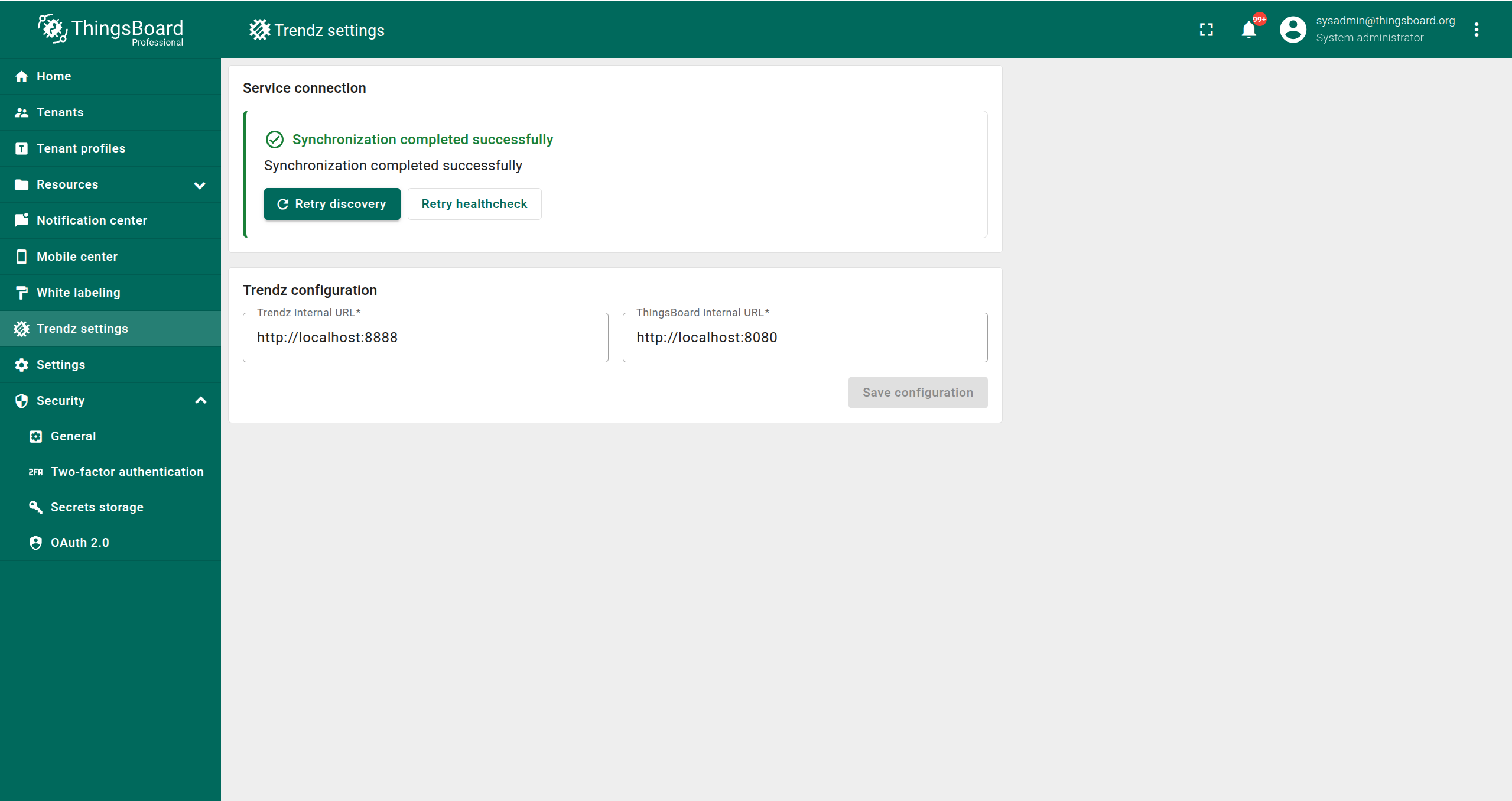
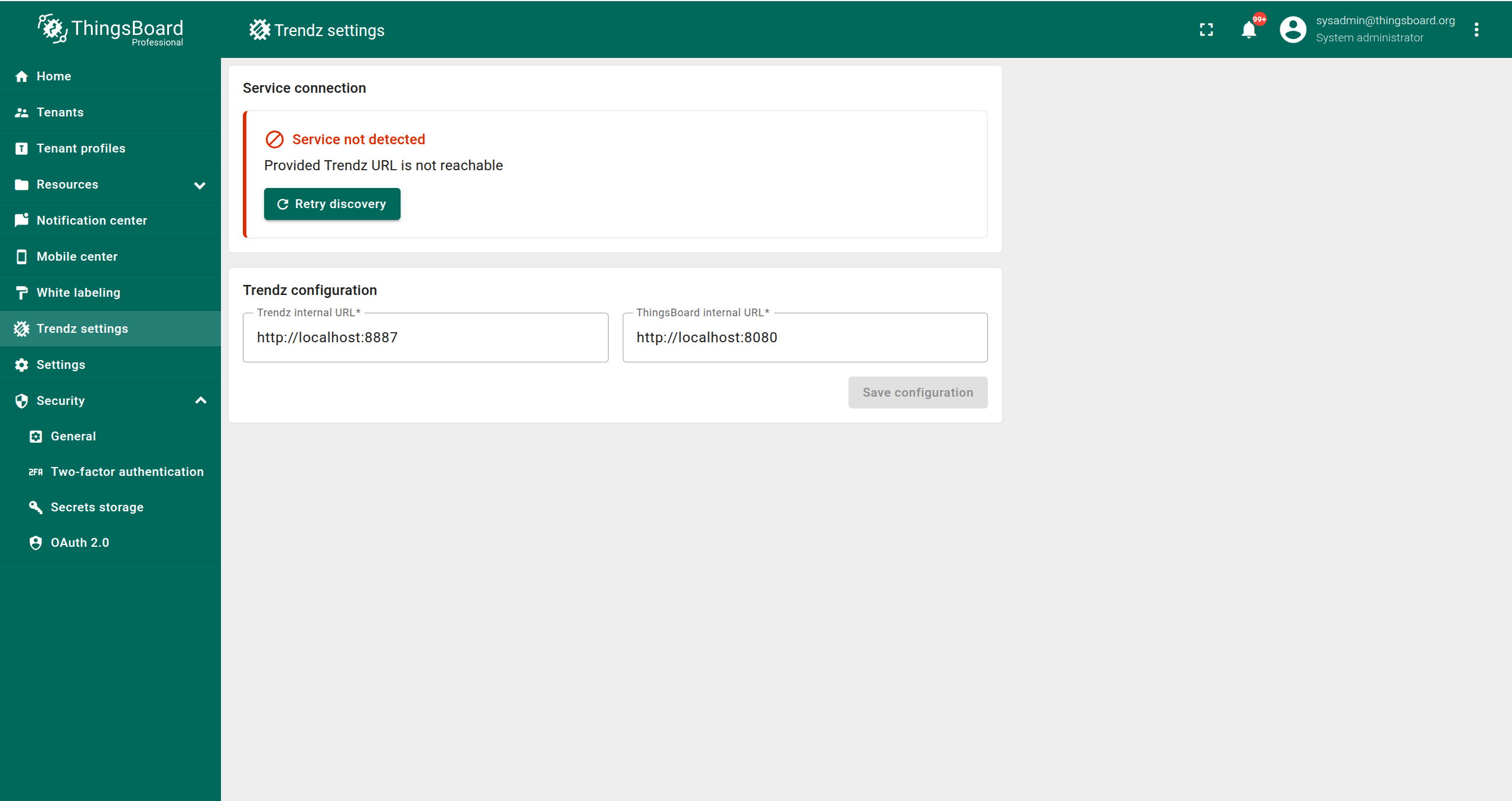
On the Trendz Settings page, you can configure the connection to the Trendz Analytics add-on.
Prerequisites
- Trendz addon should be activated for ThingsBoard instance on which you want to use Trendz. You can find out how to activate it here.
- Trendz should be installed and accessible from ThingsBoard. You can find out how to install Trendz here.
How to Access
- Log in to ThingsBoard as a System Administrator.
- Click Trendz settings tab in the left menu.
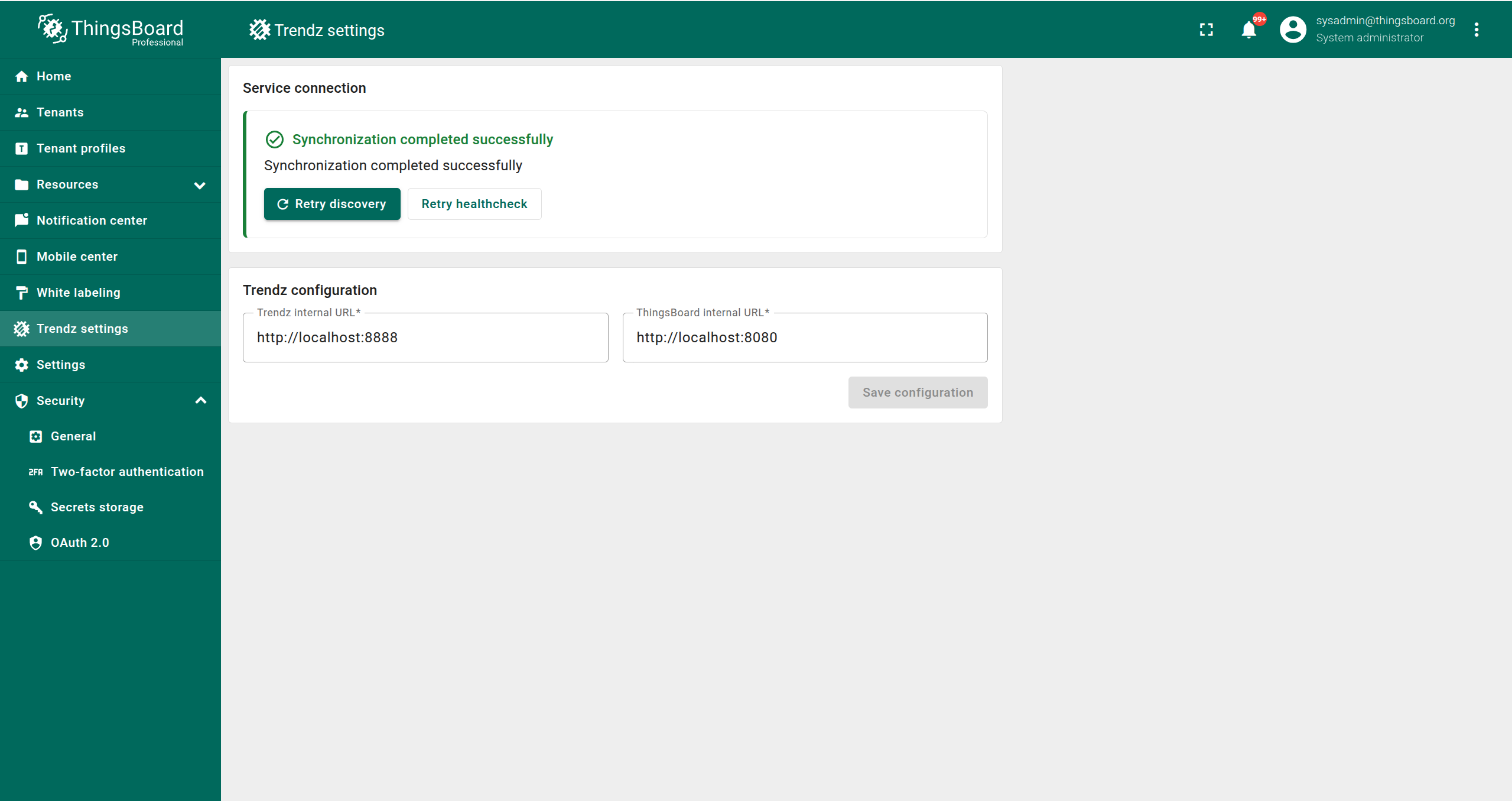
Trendz Configuration
Here you can set up Trendz Configuration:
- Trendz Internal URL - URL used by ThingsBoard to communicate with Trendz.
- ThingsBoard Internal URL - URL used by Trendz to communicate with ThingsBoard.
Examples
Url examples for different installation types:
- Ubuntu / Windows / CentOS / RHEL (Trendz and ThingsBoard installed on the same machine):
- Trendz Internal URL -
http://localhost:8888 - ThingsBoard Internal URL -
http://localhost:8080
- Trendz Internal URL -
- Docker (Trendz and ThingsBoard are in the same docker compose files):
- Trendz Internal URL -
http://trendz:8888 - ThingsBoard Internal URL -
http://thingsboard-pe:8080
- Trendz Internal URL -
- Kubernetes (ThingsBoard and Trendz are in the same cluster):
- Trendz Internal URL -
http://trendz-app:8888 - ThingsBoard Internal URL -
http://tb-node:8080
- Trendz Internal URL -
If Trendz and ThingsBoard are unreachable for each other in the private network, you can use your public URLs. For example, if ThingsBoard and Trendz under the same domain mydomain:
- Trendz Internal URL -
https://mydomain - ThingsBoard Internal URL -
https://mydomain
Actions
You can do the next Actions on this page:
- Save Configuration - Saves the URLs entered in the text boxes for Trendz and ThingsBoard.
- Retry Discovery - Initiates synchronization with Trendz using the saved configuration.
- Retry Healthcheck - (Visible only if Trendz is synced with ThingsBoard) Checks if the Trendz sync contains any errors at the current moment.
You can check sync result in the header of this page:
- If Trendz synchronization is successful, you will see: Synchronization completed successfully.
- If there are issues, an error message with explanations will be displayed.